RSS
The RSS data source can automatically fetch and display content from an RSS feed. RSS (Really Simple Syndication) is a web format used to distribute frequently updated content, such as news articles, blog posts, or announcements.
You can use an external feed (for example, from a news site) or use Feeds in Smartsign to publish messages directly on your screens.
How it works
- Fetching Data - The system retrieves content from a specified RSS feed URL.
- Extracting Information - Key details such as headlines, summaries, images, and publication dates are pulled from the feed.
- Displaying Content - The extracted data is formatted and shown on screens, updating automatically when the RSS feed is refreshed.
Requirements
- A configured RSS datasource.
- An RSS-compatible template to fetch and display the data.
Set up the datasource
The first step is to configure your data source with the RSS URL you want to use.
In this example we will use an RSS from European Space Agency with their top space news feed. (https://www.esa.int/rssfeed/TopNews)
- Go to Templates and Datasources.
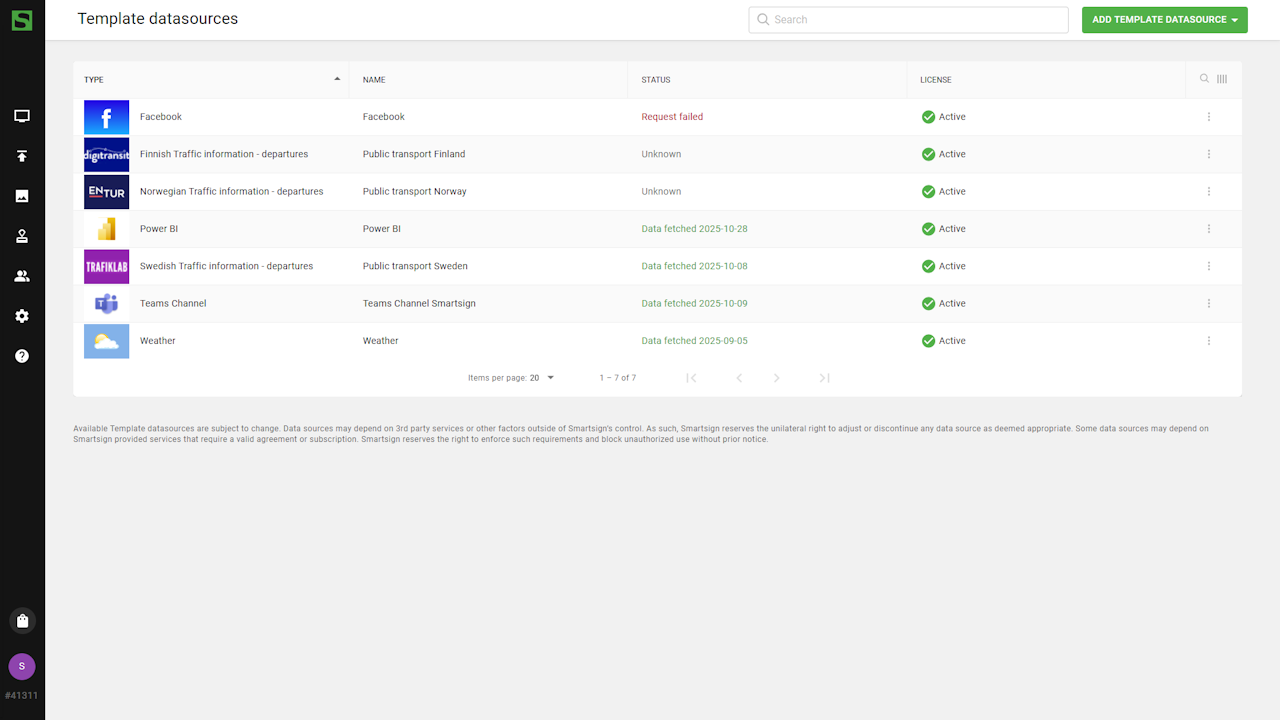
- Select Add template datasource.
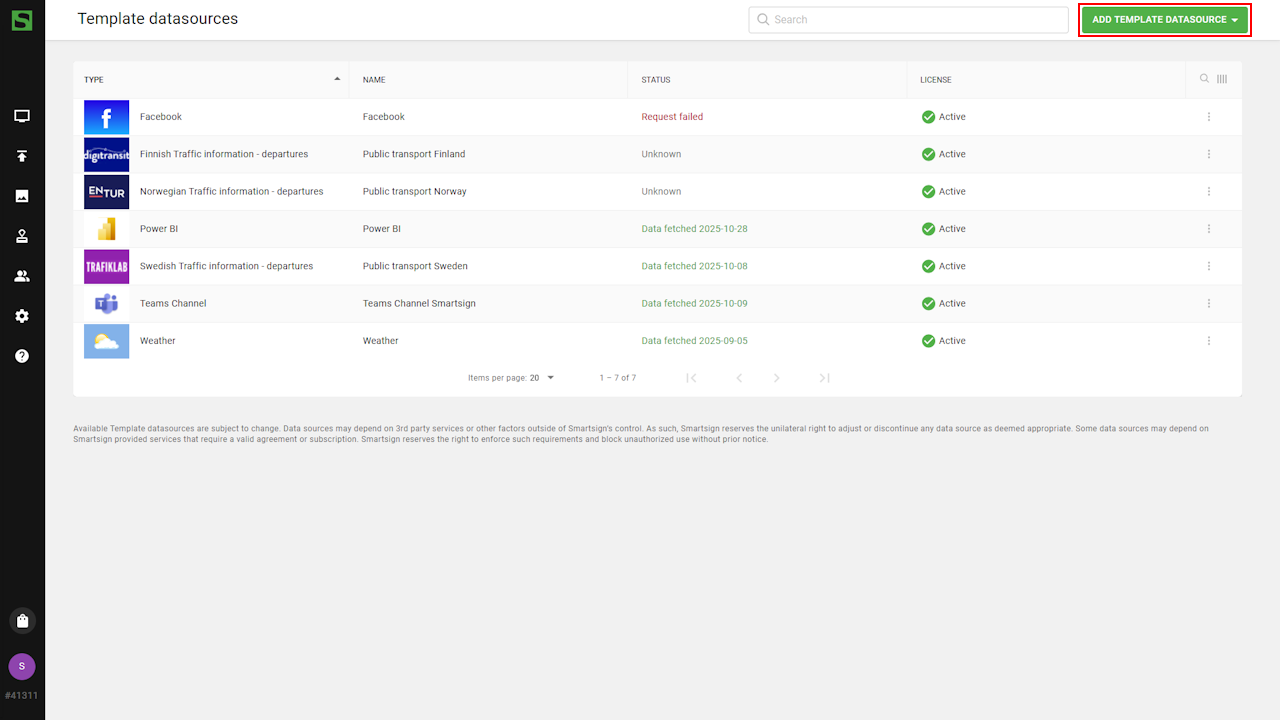
- Browse available datasources and choose RSS.
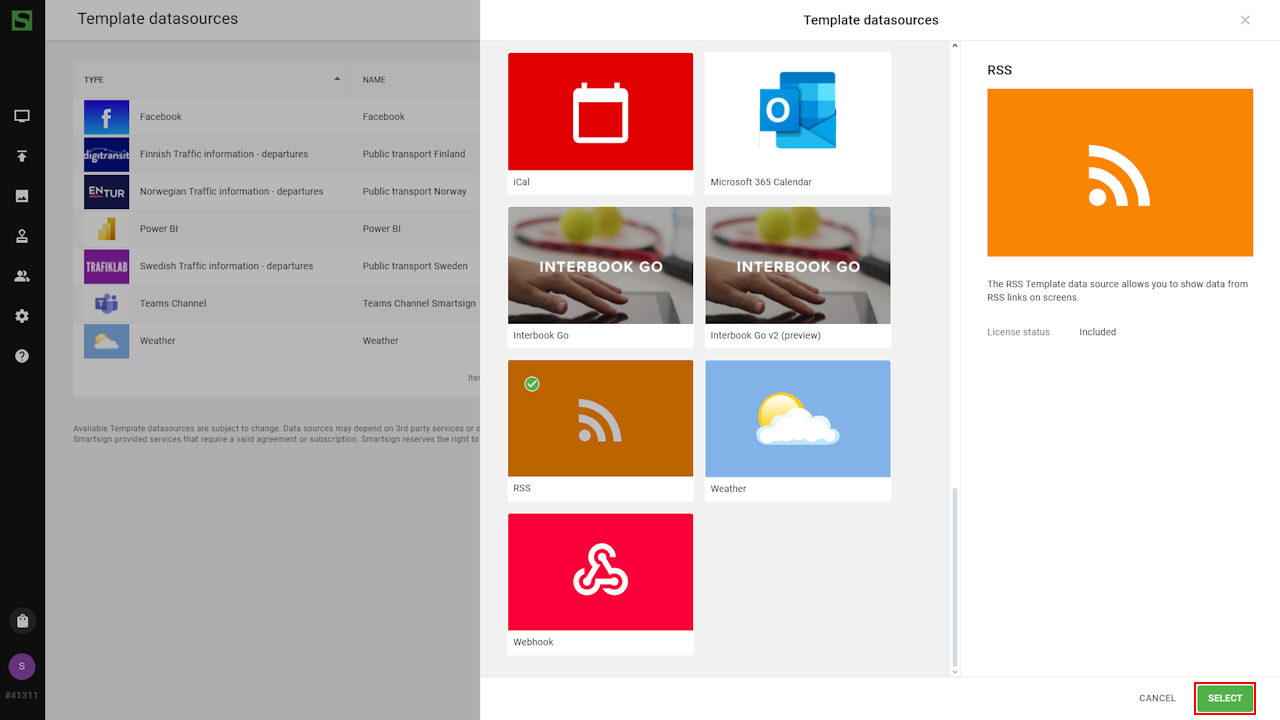
- Configure the datasource by adding Name, Description
and RSS URL.
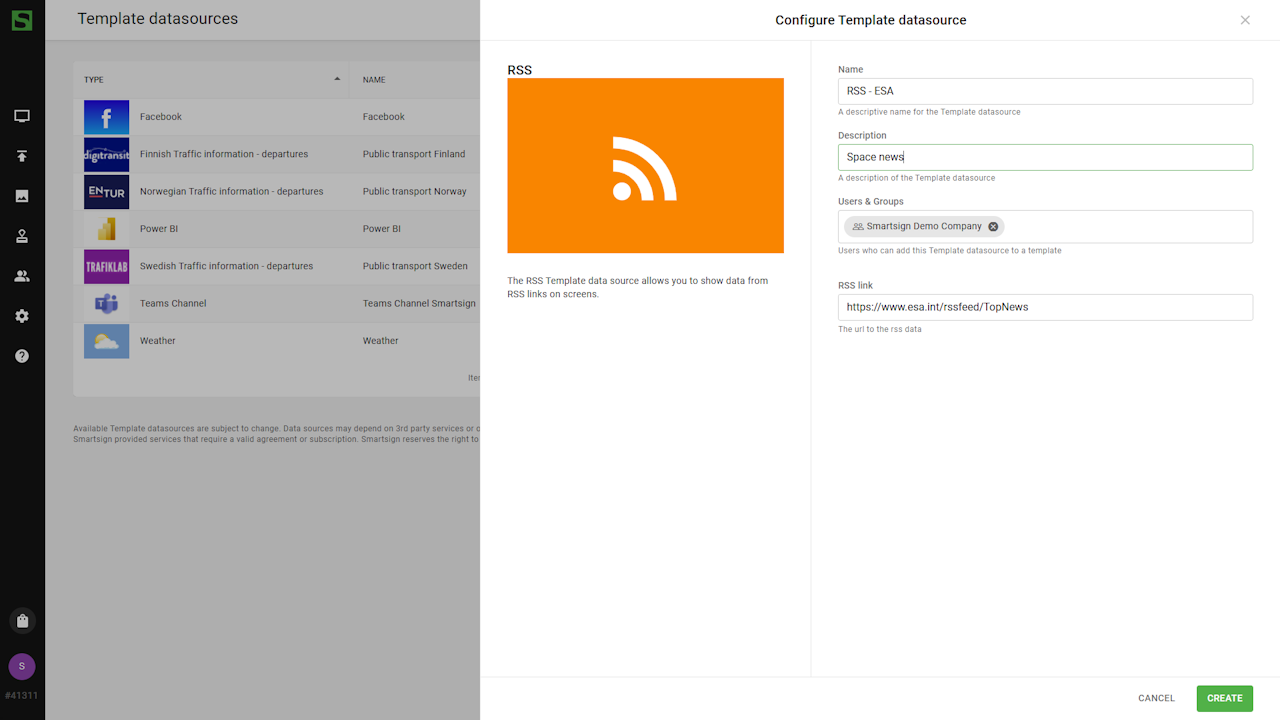
- Click Create to finish.
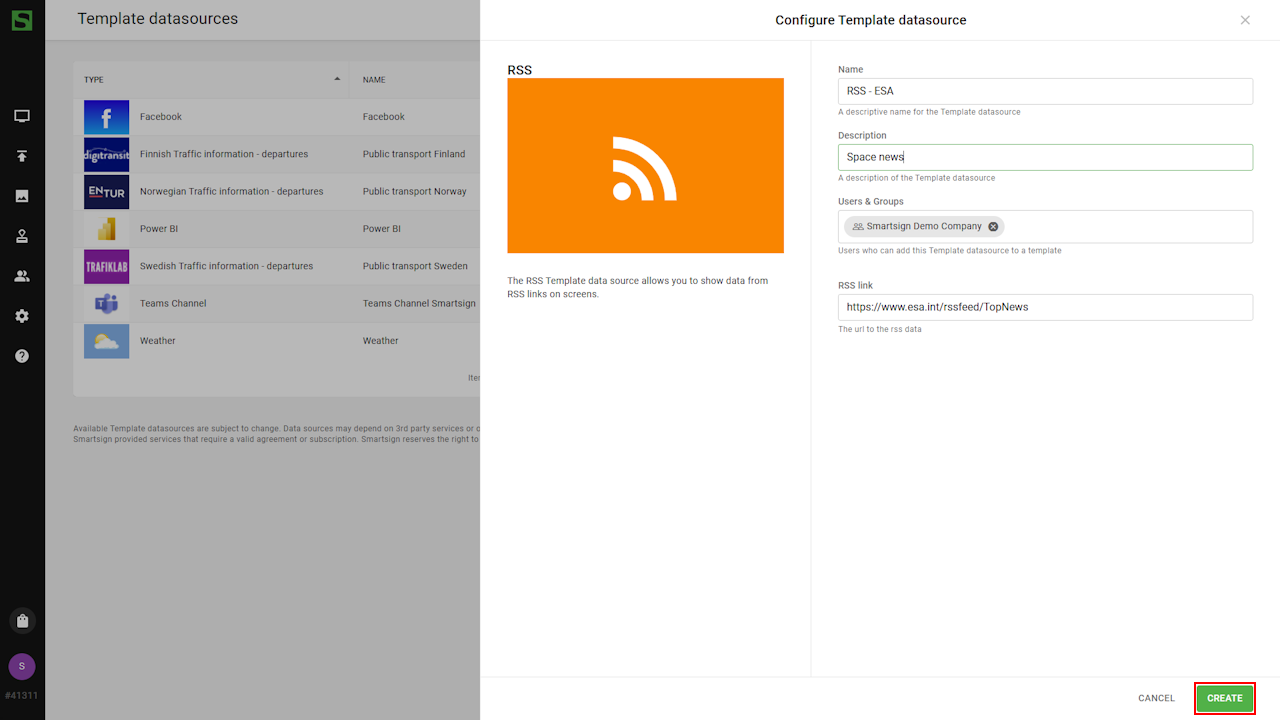
- Once created, you can confirm that data has been fetched.
Datasource is now ready to be used.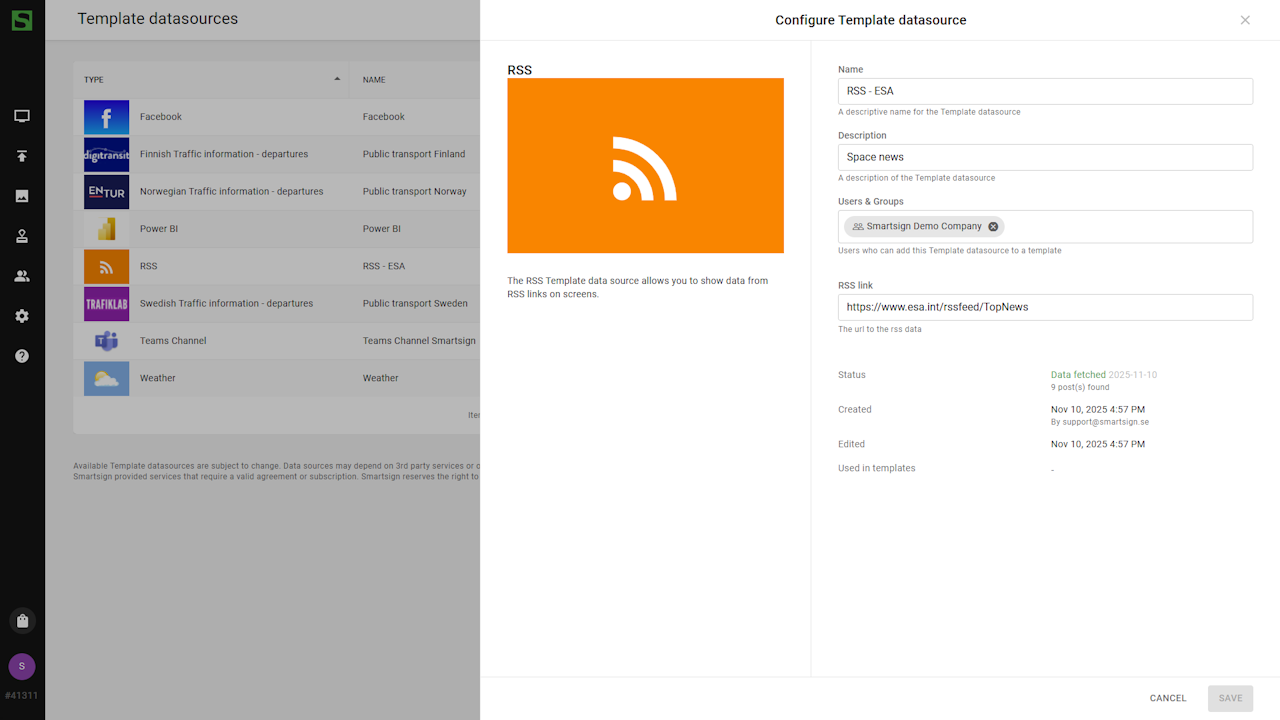
Use RSS template
When the datasource is configured, you can use an RSS template to display the feed on your screens.
Smartsign offers a few default RSS templates available in the Marketplace and you can also design your own using the Template Creator.
Download template from Marketplace
- Go to Templates
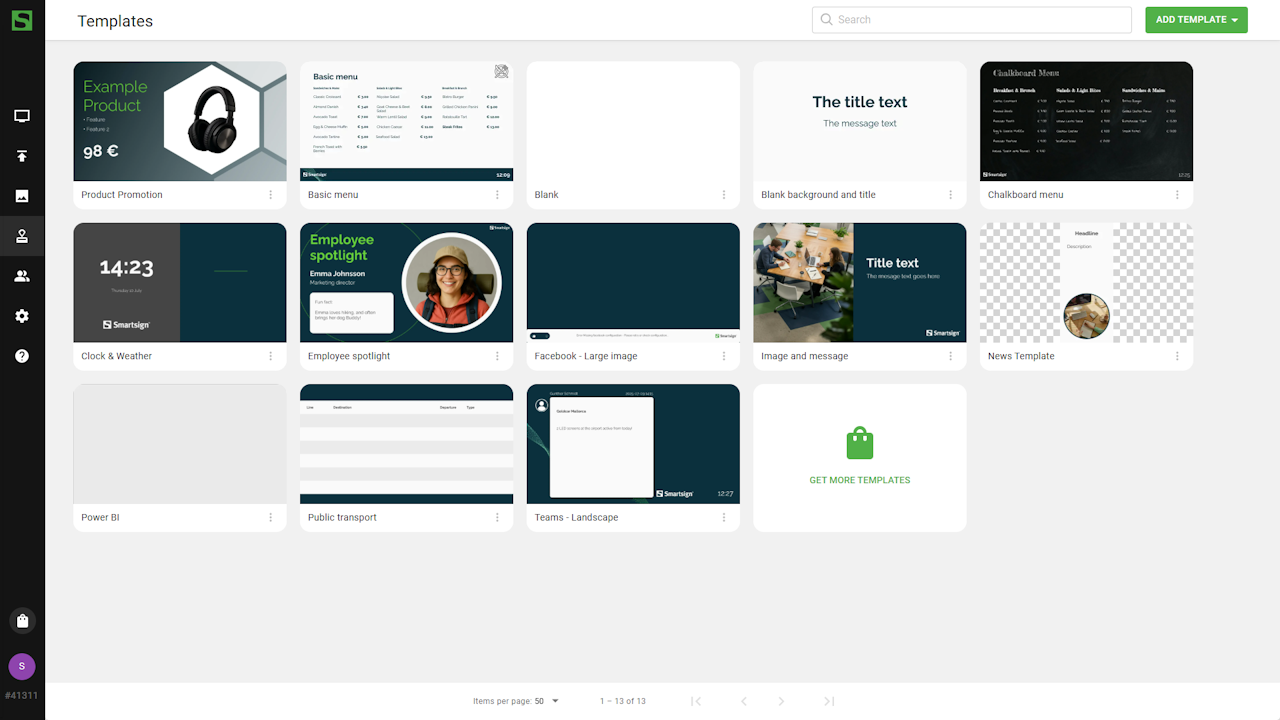
- Select Get more templates.
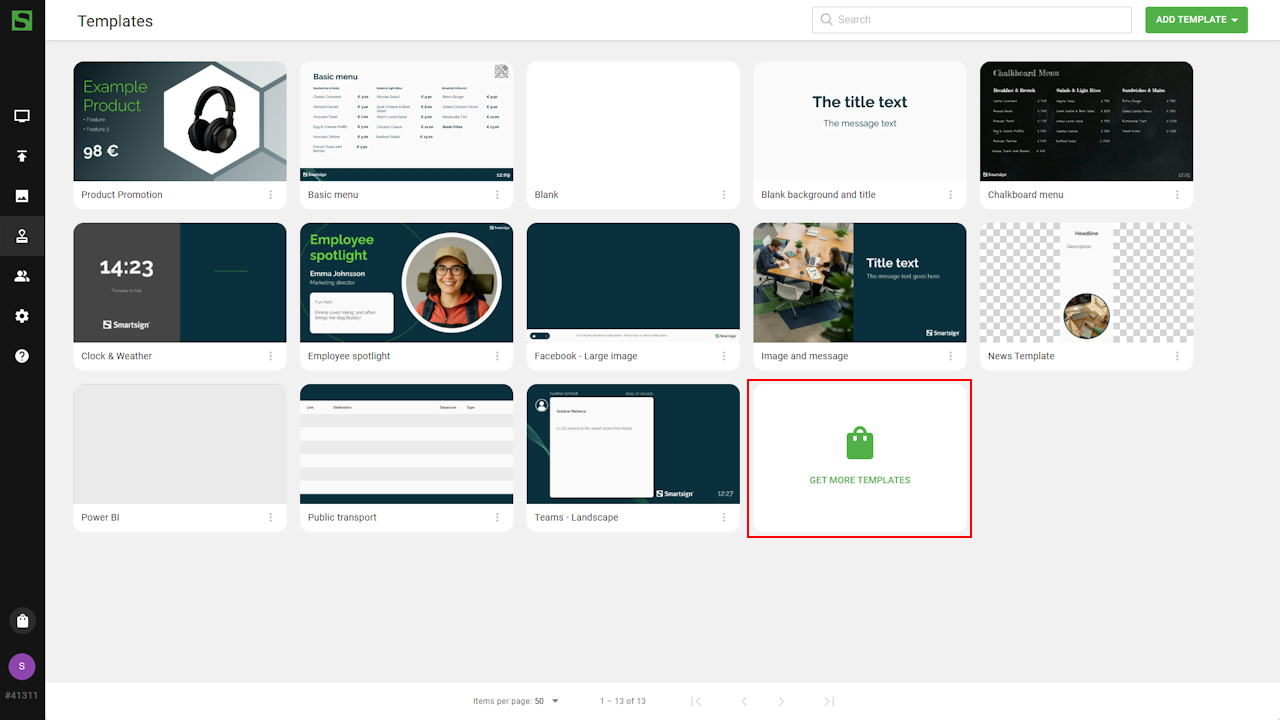
- Browse or search for RSS templates.
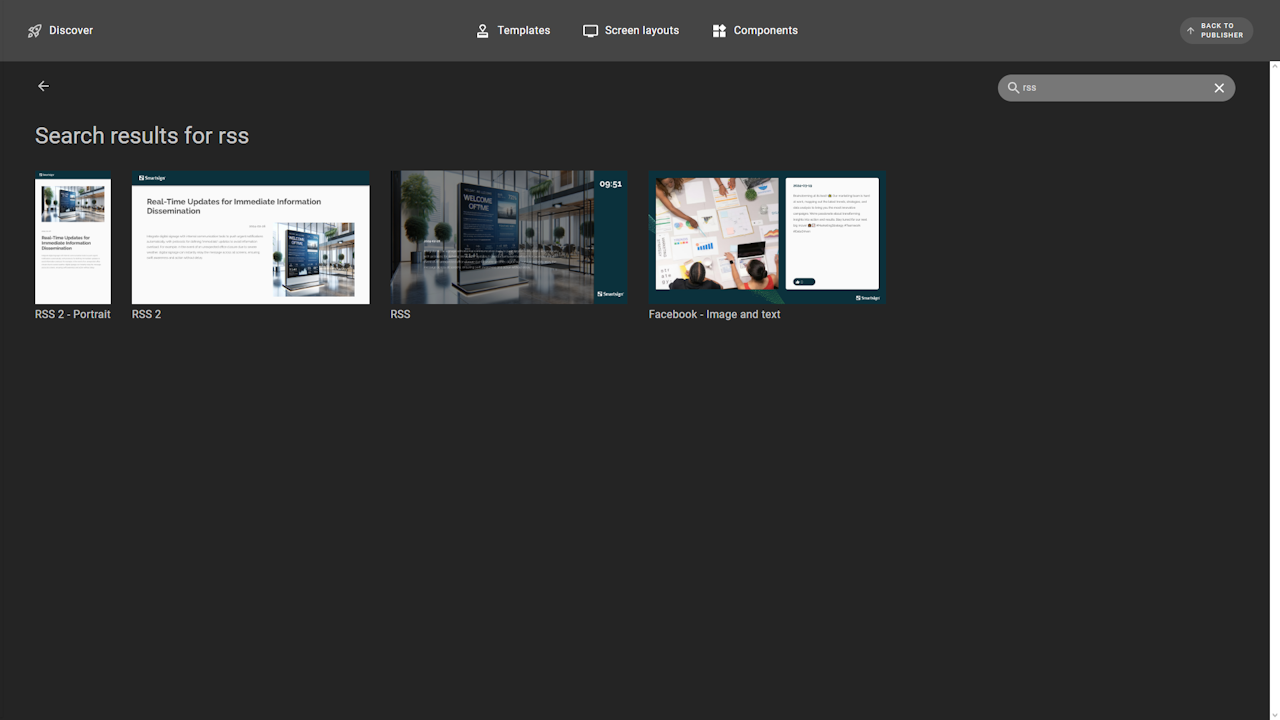
- Select a template and click get now to download it.

- If you already have a configured RSS datasource, you can connect
it directly to the template during download. It can otherwise be
done when it's added to a booking or media library.
- Return to publisher where the new template is available.
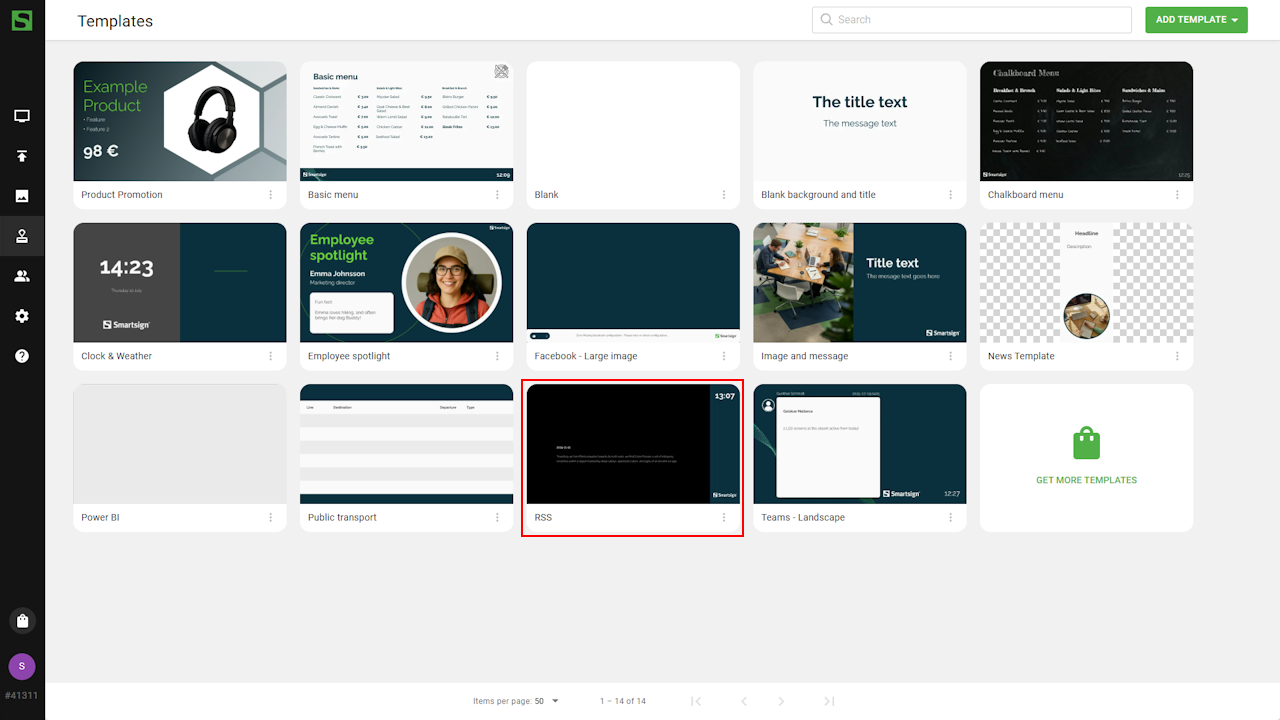
Publish template
Once the template is available, you can publish it to a channel and display it on your screens.
- Open the channel calendar (Publishing - Channels) and create a new
booking.
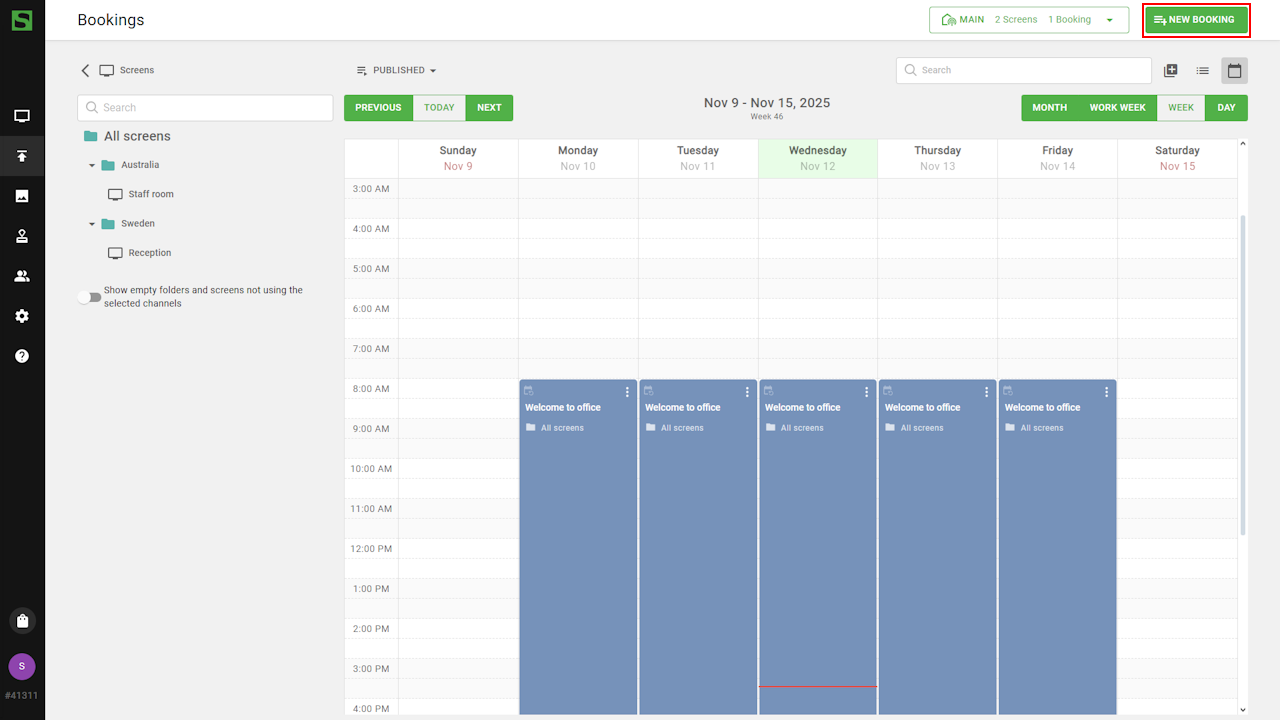
- Select Add Media and Use Template.
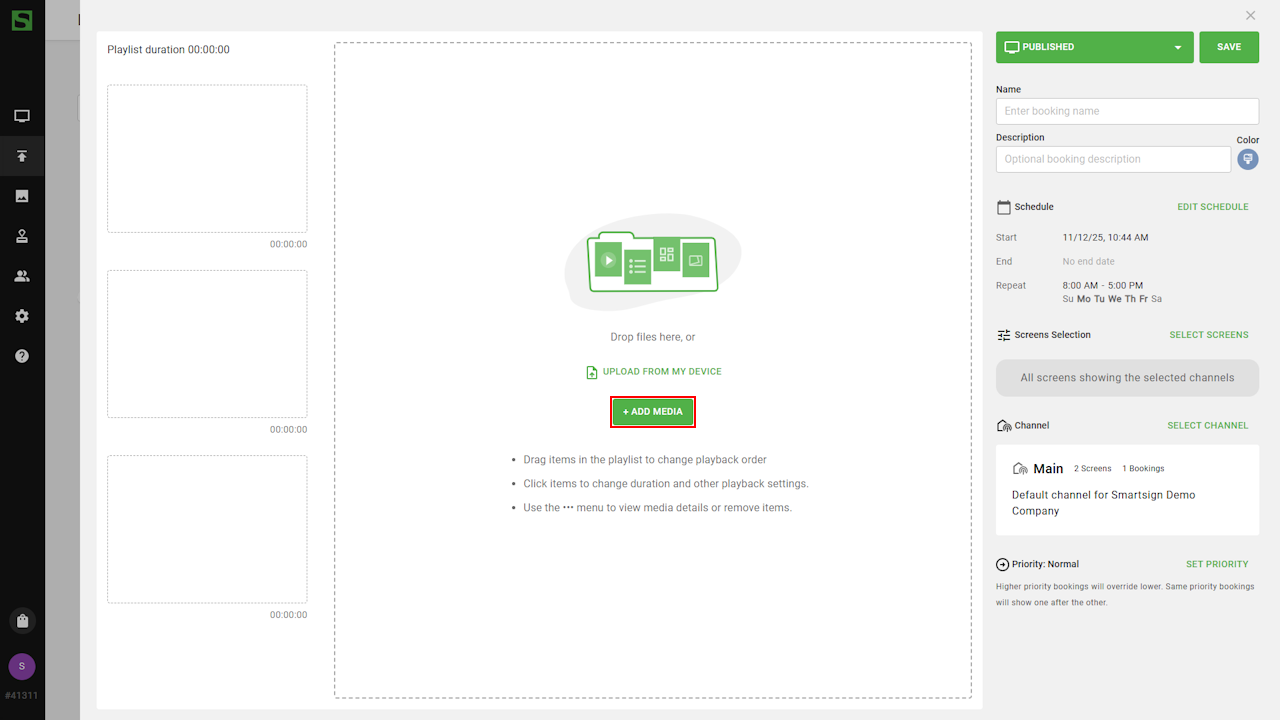
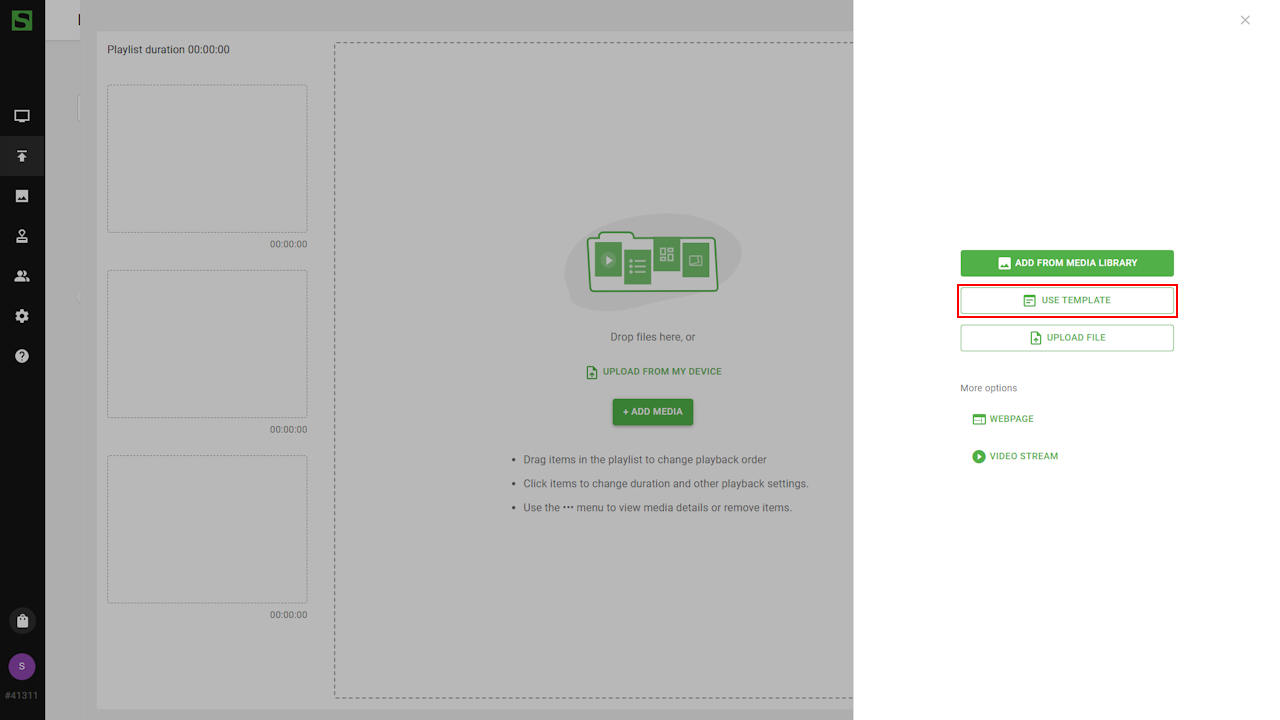
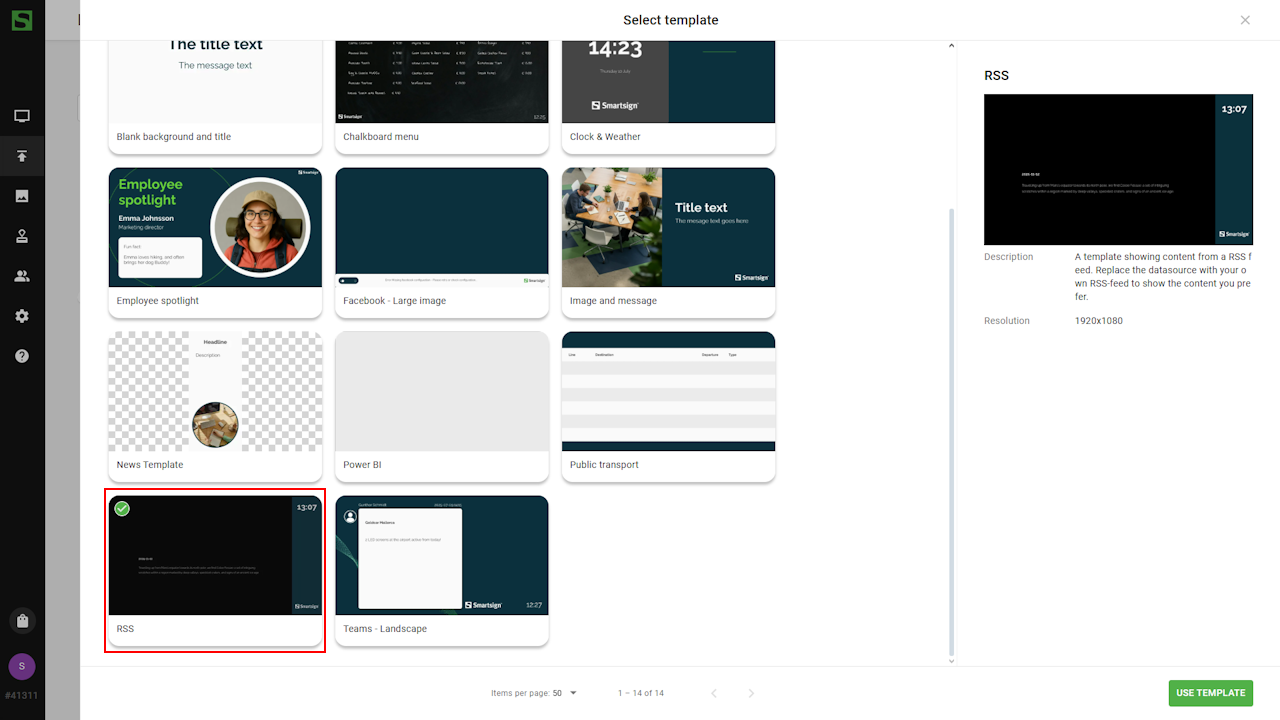
- Choose the downloaded RSS template.
- Set a name and media library storage location if you want to keep
it in a specific folder.
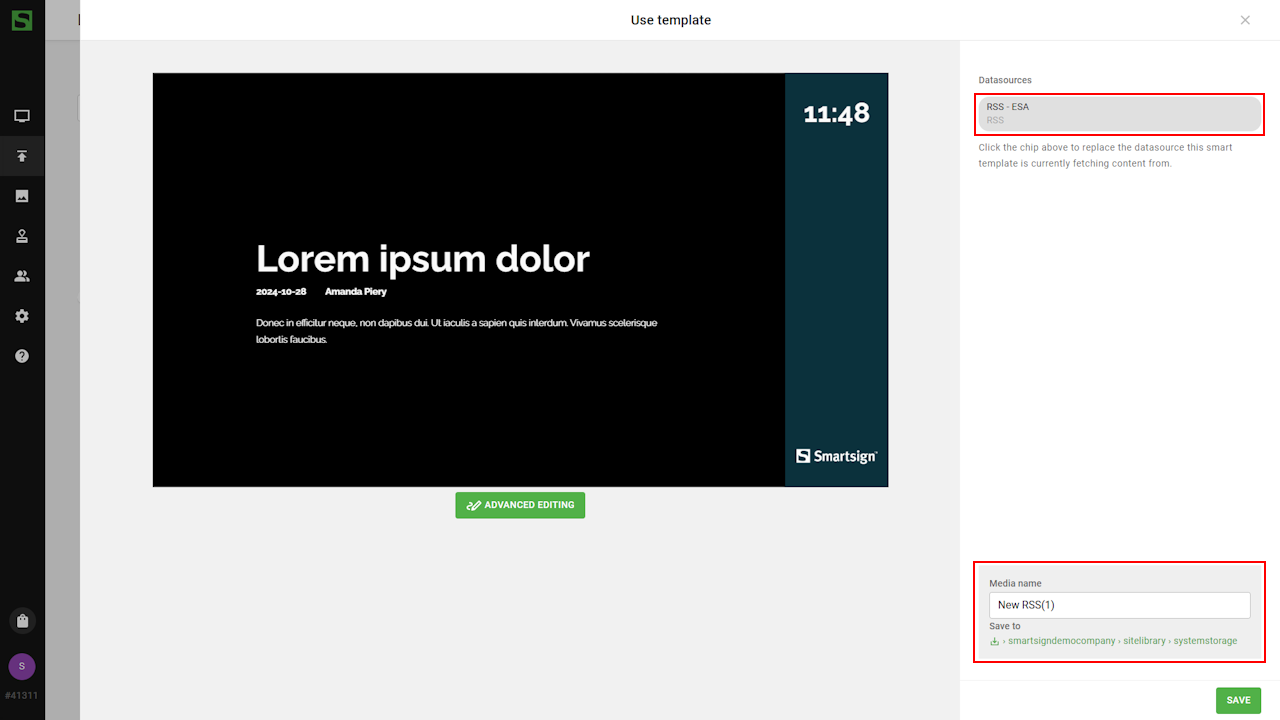
- In the Datasource box, you can adjust the settings for posts and
duration, or switch to RSS datasource if needed.
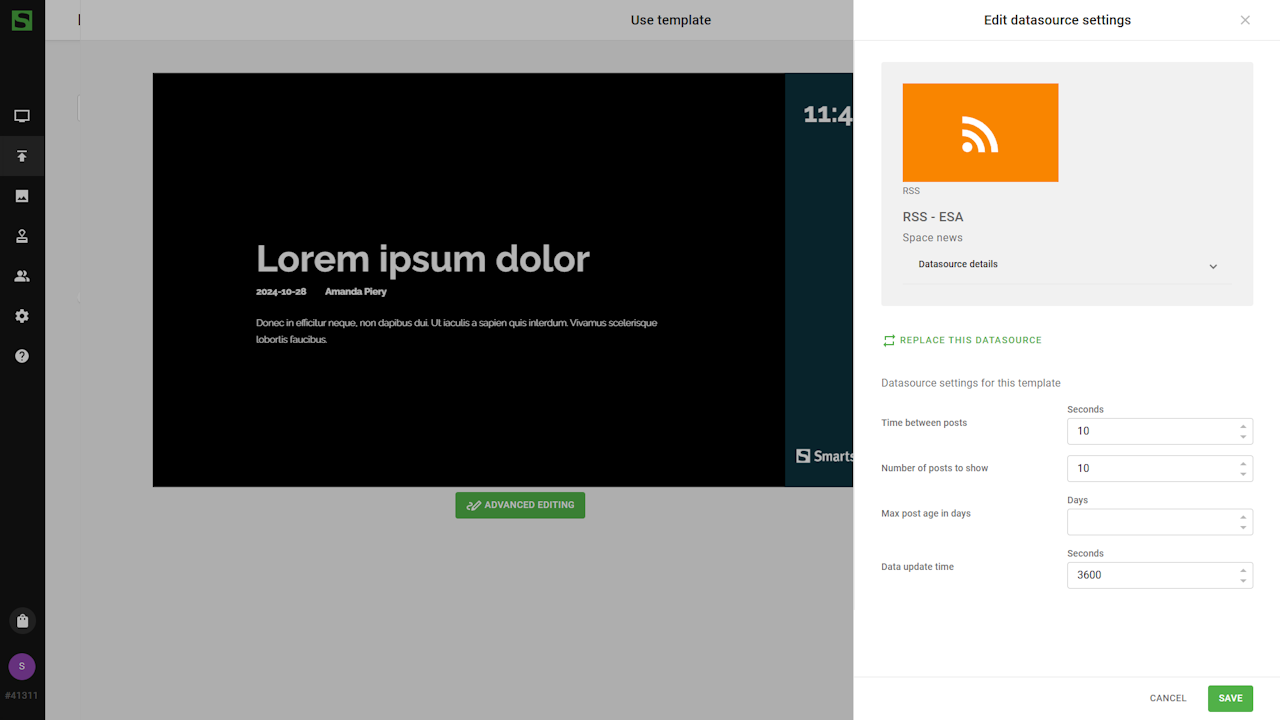
- Save when done and template is now ready to be published.
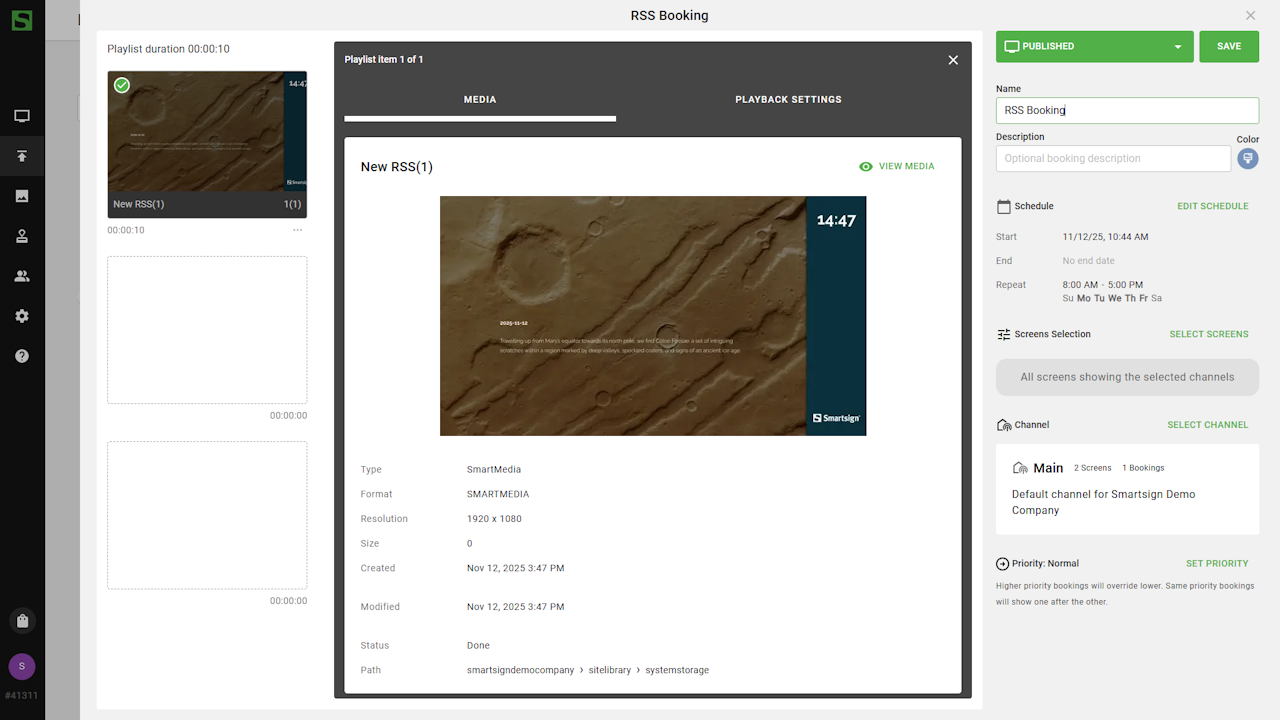
Your screens will now display live, automatically updating RSS content — such as news headlines, announcements, or other information directly from your chosen feed.
Technical information
The expected encoding for RSS feeds is UTF-8.
RSS datasource configuration options
| Setting | Description | Example |
| RSS Link | The complete URL to the RSS data including protocol | https://www.esa.int/rssfeed/TopNews |
| Data Update Time | Time in seconds between updates | 3600 (updates every hour) |
| Time for each post | Time in seconds to show each post | 10 |